Appearance
Profile and preferences
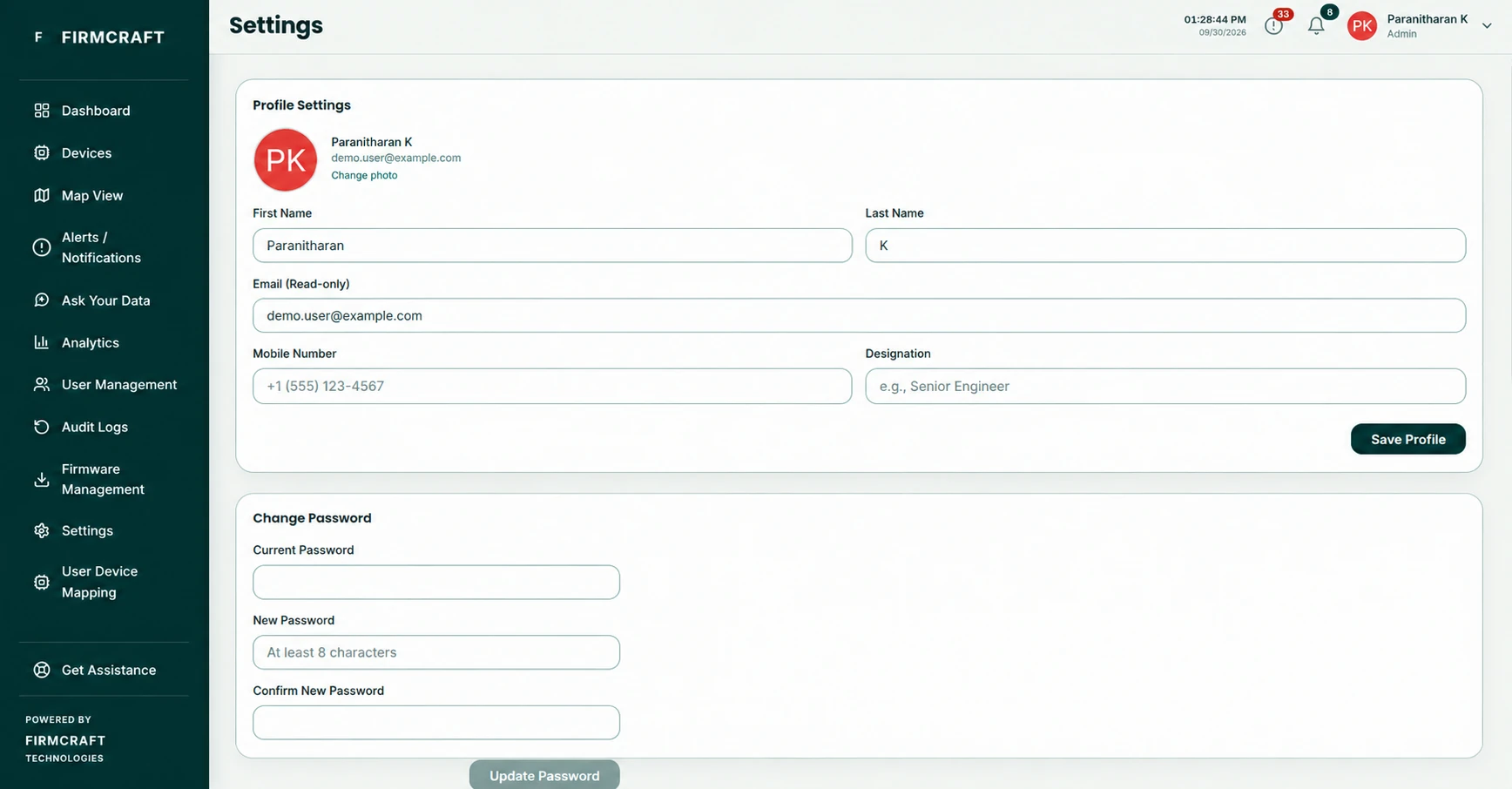
Open Settings in the sidebar. Settings has four sections.
| Section | Who can change it |
|---|---|
| Profile Settings | Everyone, for their own account |
| Change Password | Everyone, for their own account |
| Notification Preferences | Admins |
| System Preferences | Admins |
Users and Viewers see the last two read-only.
Profile Settings
- Photo: click your picture and choose Change photo. It must be under 2 MB.
- First Name, Last Name, Mobile Number, Designation.
- Email is read-only. It's the address you log in with.
Click Save Profile.
Change Password
- Enter your Current Password.
- Enter a New Password and Confirm New Password. The checklist shows the rules still missing. The new password must differ from the current one.
- Click Update Password.
A confirmation email is sent to you afterwards. Forgot your current password? Log out and use Forgot Password? on the login page.
Notification Preferences
| Setting | What it does |
|---|---|
| Email Alerts | Email every alert for your devices to your account address. |
| Additional Alert Email | Also send a copy of every alert email to one more address, such as a team inbox. Leave it blank to use your account address only. |
| Push Notifications | Send device alerts to the Firmcraft IoT mobile app. |
| Critical Alerts Only | Only email and push alerts with Critical severity. |
| Weekly Report | Every Monday at 08:00 your time, email a fleet summary with the full report attached as a PDF. See the weekly report. |
Click Save Preferences.
System Preferences
| Setting | What it does |
|---|---|
| Language | The dashboard's language. |
| Timezone | Times on every page, alert emails and the weekly report use this time zone. Search by country or zone name. |
| Date Format | MM/DD/YYYY, DD/MM/YYYY or YYYY-MM-DD. |
| Time Format | 12-hour or 24-hour. |
Click Save System Preferences.