Appearance
Roll out an update
A deployment sends one firmware version to a set of devices, in batches, and tracks each one until it's updated.
Who can do this: Admin User
Create a deployment
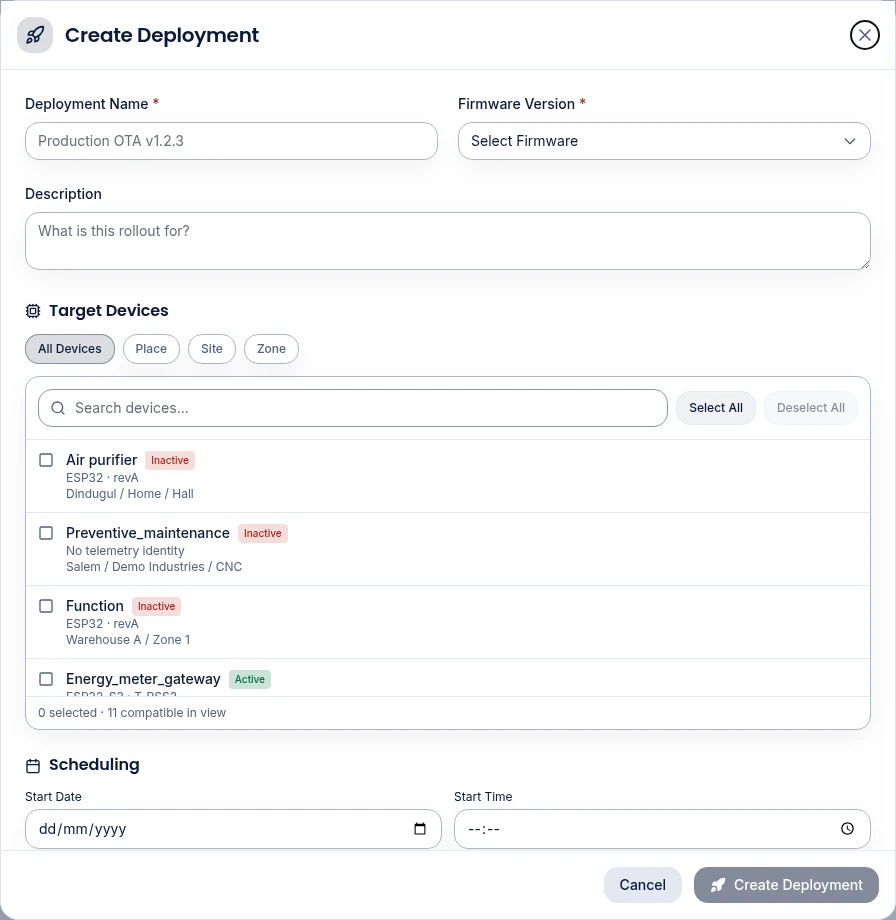
Open Firmware Management in the sidebar and click Create Deployment.
Enter a Deployment Name, such as
Production OTA v1.2.3, and optionally a Description.Choose the Firmware Version. Its Firmware Compatibility (platforms and hardware versions) is shown. You can remove hardware versions to target fewer devices.
Under Target Devices, show All Devices or narrow by Place, Site or Zone, then tick the devices to update, or use Select All. Use Search devices... to find one.
- Each device shows its platform and hardware version, such as ESP32 · revA, and whether it's Active. The count at the bottom says how many compatible devices are in view.
- Devices the firmware doesn't fit can't be ticked. Hover over one to see why, for example Hardware version revB not targeted. No telemetry identity means the device hasn't reported its platform yet.
Scheduling: set a Start Date and Start Time, or leave them empty to start straight away.
Batch Configuration:
Setting What it does Batch Size How many devices are updated at the same time. Batch Interval (seconds) How long to wait before starting the next batch. Max Retries How many times to retry a device that fails. Click Create Deployment.
Start small
Update a handful of devices first. Once they've updated successfully, roll out to the rest. A small Batch Size limits how many devices a bad release can reach before you stop it.
Follow its progress
Open the Deployments tab. Each deployment shows its Overall Progress; expand it to see every device with its Current Firmware and status.
A device's status is whatever the device reports, such as downloading, installing or rebooting. A device shows Processing until it first reports. It's marked completed only when its readings show the new firmware version.
Each deployment counts its devices as Completed, Updating, Pending and Failed. When every device is confirmed on the new version, it shows OTA Update Successful.
Run, pause or stop
Use the buttons next to Deployment controls:
- Pause: no new batches start.
- Run: starts a scheduled deployment now, or resumes a paused one.
- Stop: ends the rollout. Devices that have already updated are not rolled back; devices still updating stop where they are.
Common problems
A device stays on Processing. It hasn't reported any progress. Check that it's online, that OTA is enabled for it, and that its Publish Path and Subscribe Path match what its firmware uses. See Set up a device for OTA.
A device reports completed, but the deployment doesn't count it. Its readings still show the old firmware version. The device must report its firmware version after it restarts.