Appearance
Firmware updates (OTA)
Firmware Management updates the firmware on your devices and gateways over the air (OTA), without anyone visiting them. You upload a firmware file once, choose which devices get it, and the Firmcraft IoT Dashboard rolls it out in batches and tracks each device's progress.
Open Firmware Management in the sidebar.
Who can do this: Admin User
How an update works
- You upload a firmware file and say which platforms and hardware versions it's for.
- You create a deployment: pick the firmware and the devices to update.
- The IoT Dashboard sends each device an update command over MQTT, on the device's Publish Path. The command tells the device where to download the firmware and how to check it.
- The device downloads and installs the firmware, and reports its progress on its Subscribe Path.
- The update counts as completed only when the device's own readings report the new firmware version. A device just saying "done" isn't enough.
The page
The page has three tabs:
| Tab | What it's for |
|---|---|
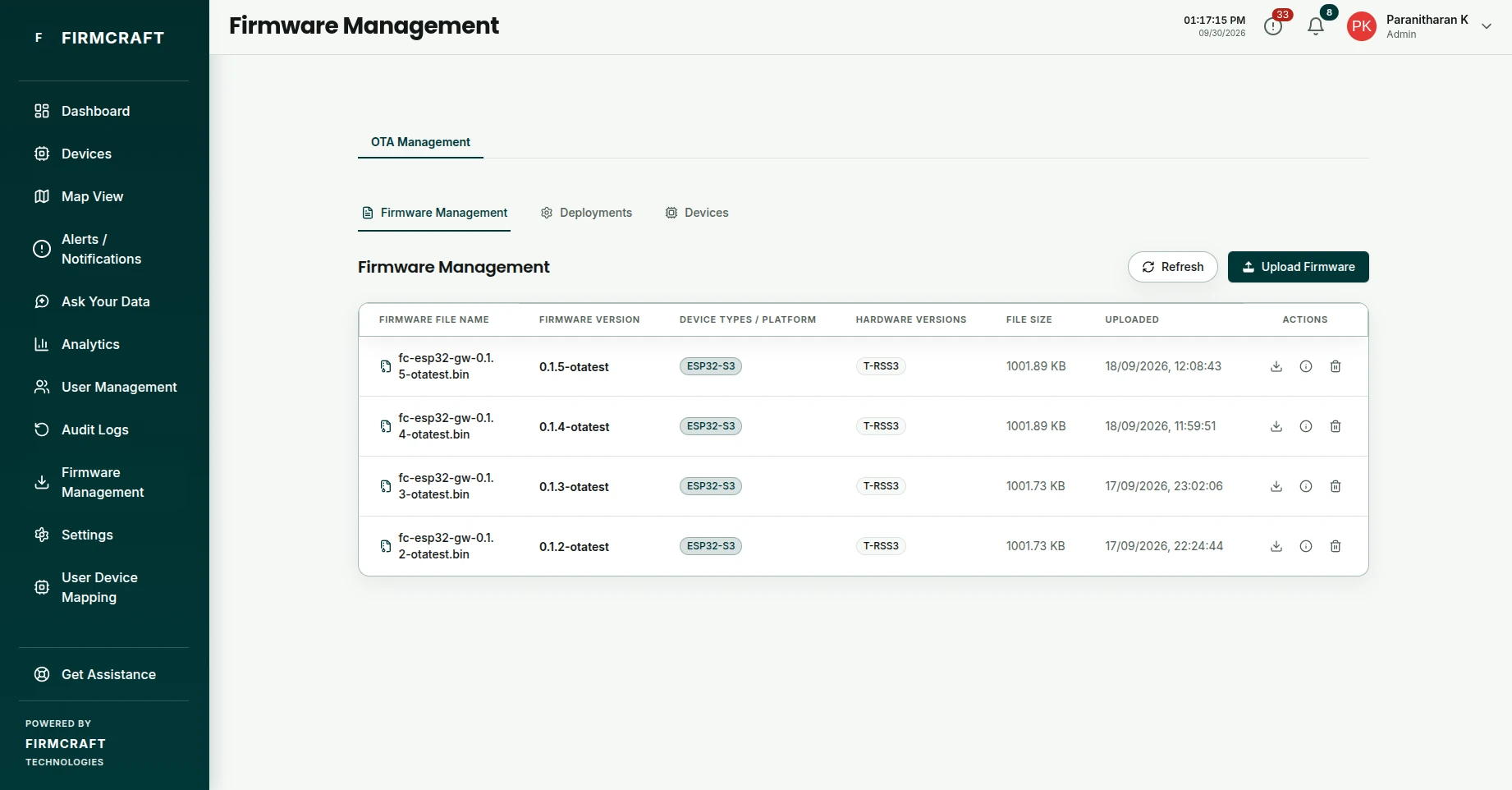
| Firmware Management | The firmware files you've uploaded. Download, view details or delete them. |
| Deployments | Your rollouts, with their progress and controls. |
| Devices | Every device and gateway, and whether OTA updates are switched on for it. |
Summary tiles at the top show Total Deployments, Active / Running, Completed, Failed, Devices Updating and Success Rate.
Before your first update
Each device or gateway needs:
- OTA switched on. On the Devices tab, click Enable OTA for it. Filter the list by OTA Enabled or OTA Disabled to check.
- Firmware Update paths. Set Subscribe Path and Publish Path in the device's or gateway's settings, under Firmware Update. See Set up a device for OTA.
- Its platform and hardware version in its readings. The IoT Dashboard uses them to decide which firmware fits which device.