Appearance
User Device Mapping
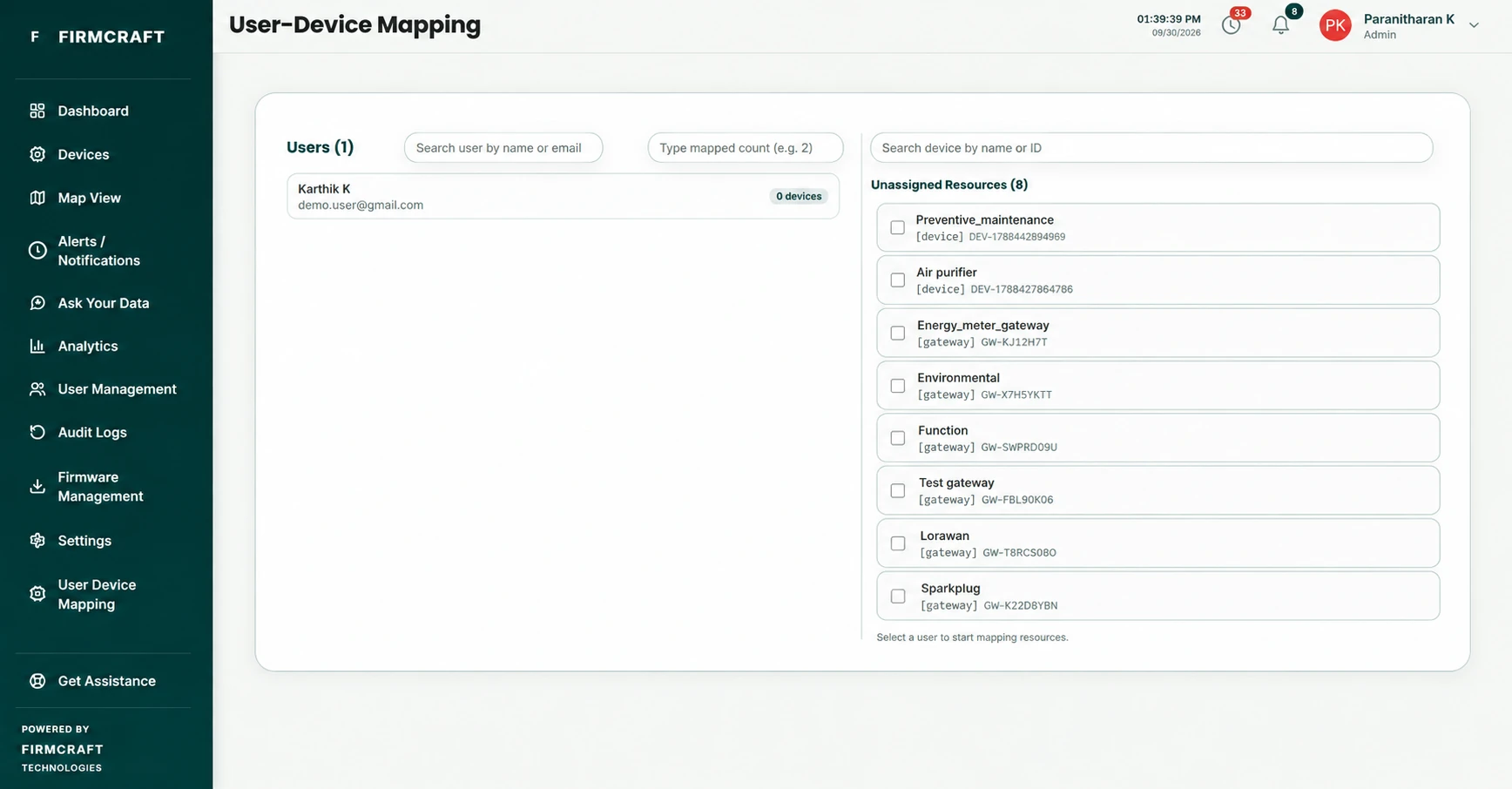
Admins decide which devices and gateways each User looks after. A User sees and manages only the devices assigned to them, plus any they add themselves.
Who can do this: Admin
Steps
- Open User Device Mapping in the sidebar.
- On the left, pick a User. Use the search box, or type a number to find Users with that many devices mapped.
- The right side shows two lists:
- Mapped Resources: devices and gateways this User has now.
- Unassigned Resources: devices and gateways no User has yet.
- Tick a device in Unassigned Resources to give it to this User. Untick a device in Mapped Resources to take it away. Use Search device by name or ID to find one.
- Click Confirm Changes.
A message confirms how many resources were mapped and unmapped.
Good to know
- Each device or gateway belongs to one User at a time. To move it, unmap it from the first User, then map it to the second.
- Mapping a gateway gives the User all of its child devices.
- Viewers invited by that User see the newly mapped devices too.
- Admins always see every device, whoever it's mapped to.