Appearance
The gateway page
Each gateway has a page showing its own status and a card for every child device. Open Devices in the sidebar and click the gateway's row.
Who can see it: everyone with access to the gateway. Viewers can look but not change anything.
What's on the page
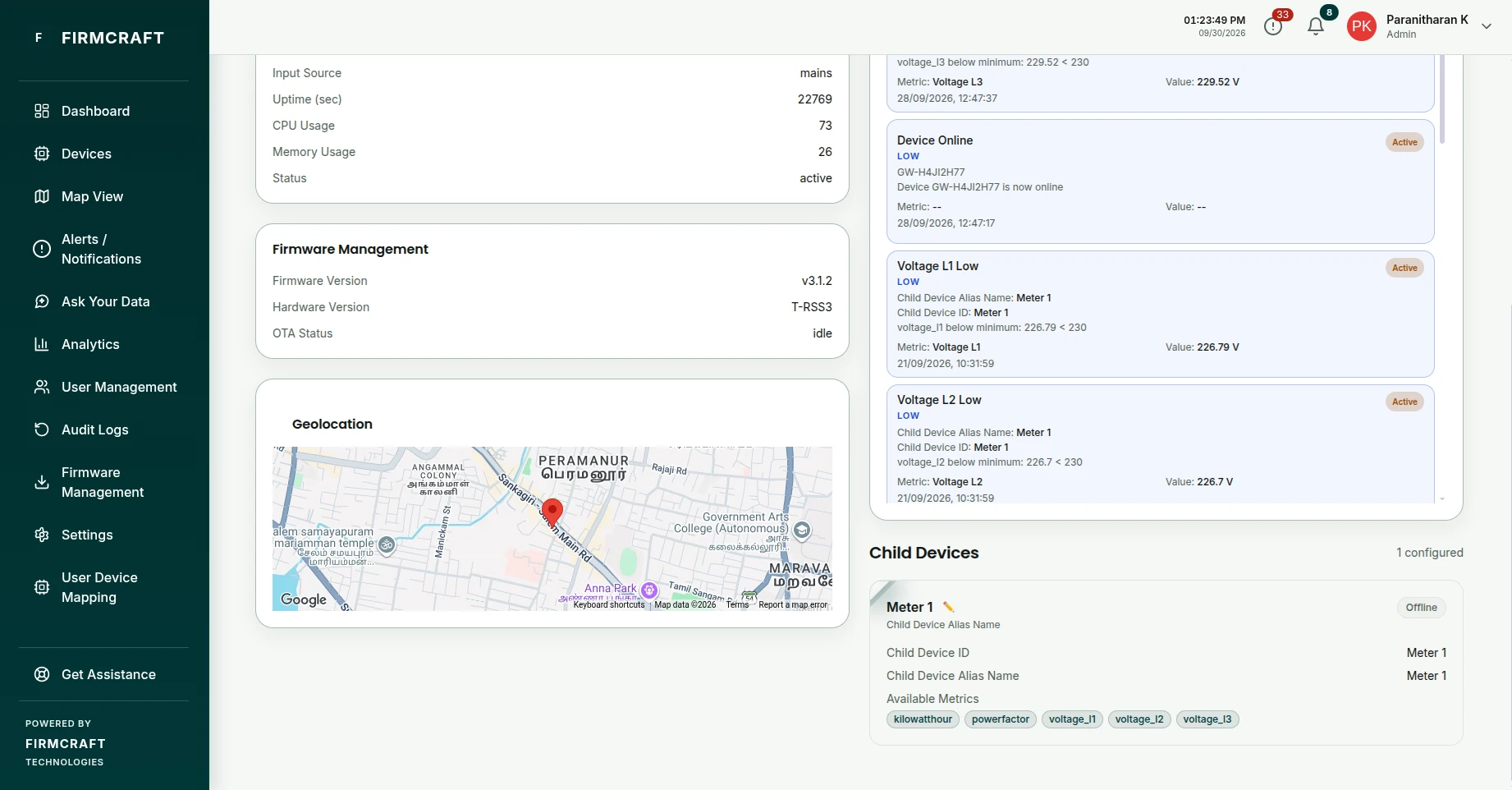
| Section | What it shows |
|---|---|
| Header | Gateway ID, number of Connected Devices, Firmware and Last Seen. |
| Gateway Overview | The gateway's details and its own values, such as uptime or signal, if you mapped them under Gateway Overview. |
| Firmware Management | Firmware and hardware versions, and over-the-air updates. |
| Geolocation | The gateway on a map, if it has a latitude and longitude. |
| Child Devices | One card per child device. |
| Alerts Summary | Recent alerts from this gateway's children. Click Open in Alert Management for the full list. |
Child device cards
Each card shows the child's Alias, Child Device ID, Online or Offline, and its Available Metrics. Cards update live as readings arrive.
- Open a child: click its card to see its readings, charts and history.
- Rename a child: click the ✏️ next to its alias, type the new name, and press Enter or click Save. The alias is only a display name; readings are still matched by the Child Device ID. Admin User
Why is a child showing nothing?
When the gateway is online but a child isn't reporting, its card tells you why:
| Message on the card | What it means | What to do |
|---|---|---|
| Nothing received for this device yet. If the gateway is sending it, check the identifier field set for it in Payload Mapping. | No message has ever been matched to this child. | Check the child's Device ID and Identifier Field in the gateway's mapping. They must match the message exactly. |
| The gateway is online but has not reported this device recently. | The child used to report, but the gateway has stopped including it. | Check the equipment, and its wiring or radio link to the gateway. |
| No value in the latest reading for voltage. Check the mapping for it. | Messages arrive for this child, but a metric has no value. | Fix that metric's JSON Path or transform. Use Test Mapping with a fresh sample. |
When the whole gateway is Offline, the cards don't show these messages, because the gateway itself is the problem. See Gateway data not arriving.
The child device page
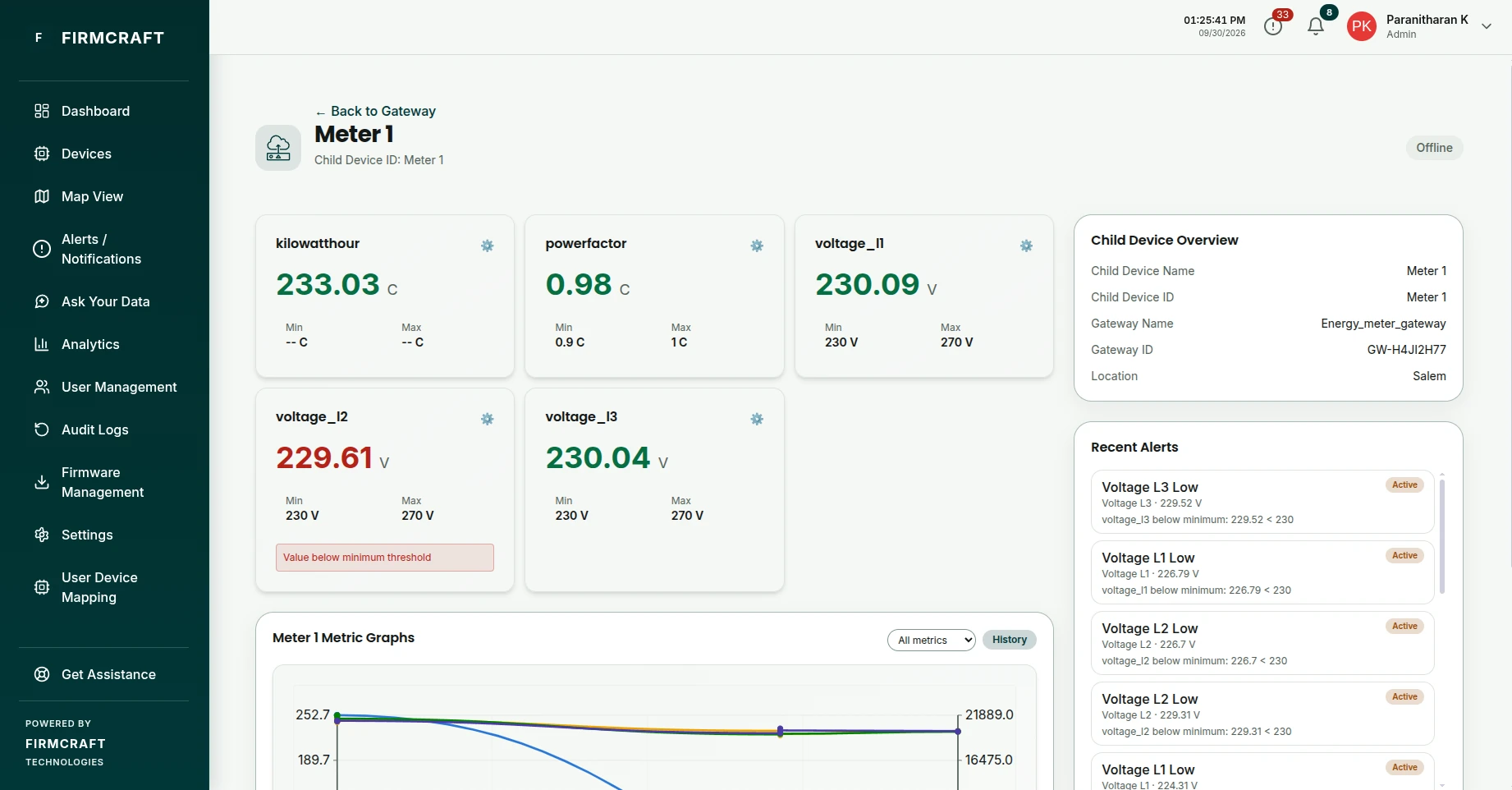
Click a child's card to open its page. It shows the Child Device Overview (name, ID, its gateway and location), live metric widgets, and Recent Alerts. As on a device page, you can replay past readings for a time range and return to live data.
Change the gateway
To change the gateway's connection, mapping or child devices, open Devices in the sidebar (dashboard.firmcraft.in/devices) and click Edit on the gateway's row in Device Management. Admin User (own gateways)