Appearance
Invite users and viewers
Add your team to the Firmcraft IoT Dashboard so everyone logs in with their own account. Choose each person's role carefully; see Roles explained.
Invite a User or Viewer (Admins)
Who can do this: Admin
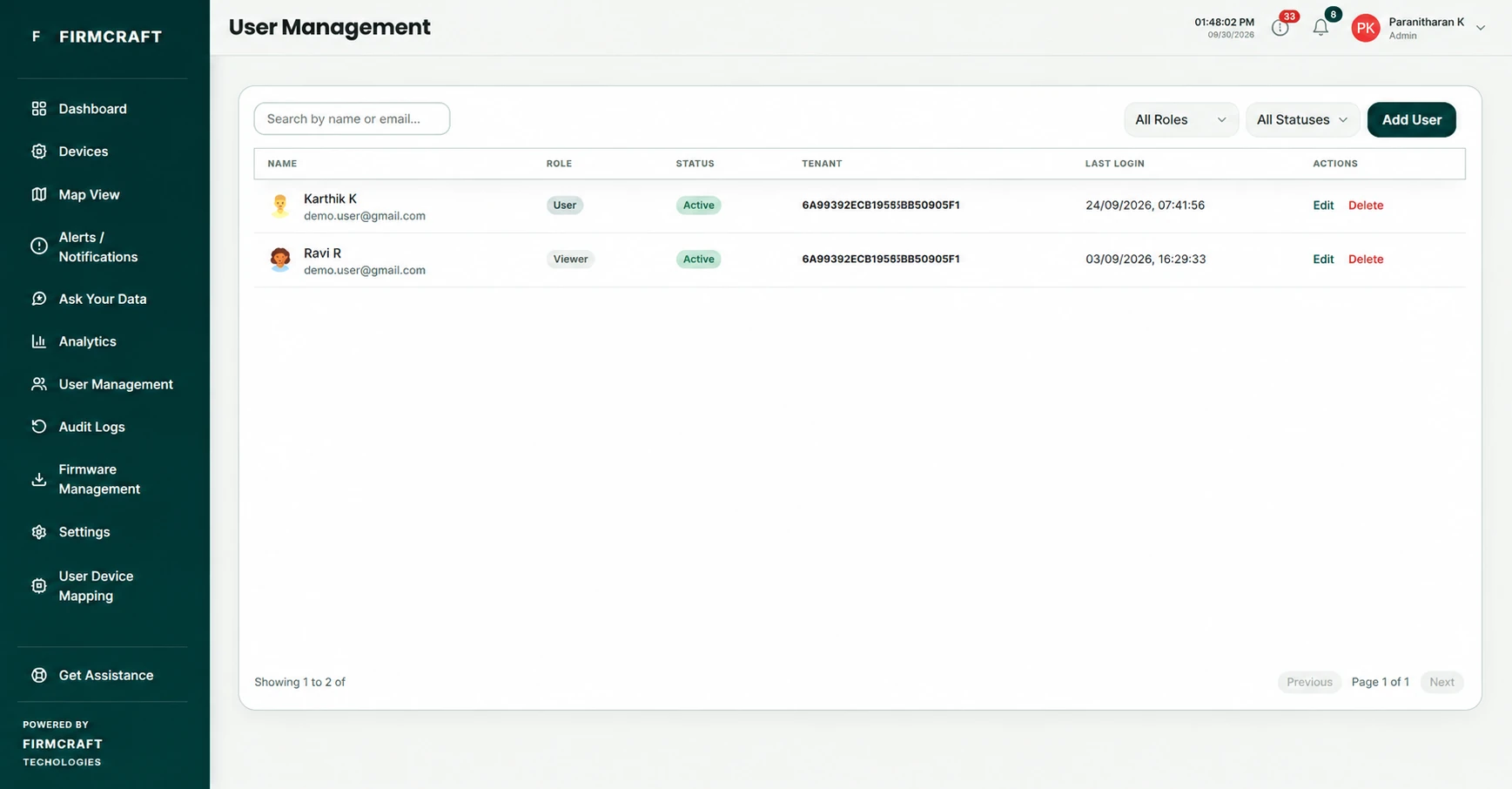
- Open User Management in the sidebar.
- Click Add User.
- Basic Info: enter the person's First Name, Last Name, Email Address and Username. Optionally add a Mobile Number, profile photo and company details.
- Security & Role:
- Set a Password and Confirm Password. The person can change it after logging in.
- Choose the Role: User or Viewer. Roles you can't create are marked (Not Permitted).
- Preferences: choose the Language, Timezone, and which alerts they get: Email Alerts, SMS Alerts, In-app Notifications.
- Click Submit User.
What happens next
The IoT Dashboard emails the person an activation link. Their account shows as Pending until they open it, and they can't log in before then. After activating, they log in at dashboard.firmcraft.in/login with their email and the password you set.
A new User sees only the devices they add themselves, until you map devices to them.
Invite a Viewer (Users)
Who can do this: User
Users can give read-only access to their own devices, for example to a customer or a manager.
- Open Viewer Management in the sidebar.
- Click + Add Viewer.
- Fill in the Viewer's name, Email Address, Password and preferences.
- Click Create Viewer.
The Viewer sees your devices and dashboards, but can't add, edit or control anything.
Manage people
On User Management (or Viewer Management), each person has a status:
| Status | Meaning |
|---|---|
| Active | Can log in. |
| Pending | Hasn't opened the activation link yet. |
| Suspended | Blocked from logging in. |
- Activation email lost? Click Resend link on the person's row. It only appears while they're Pending.
- Someone leaving? Suspend or delete their account from their row.
- Filter the list by role or status to find people quickly.
Common problems
"This email ID already exists. Please use a different email ID." Every account needs its own email address.
"This user was already deleted. Please contact support." That email belonged to a deleted account. Contact Firmcraft support to restore it.
"Password does not meet the requirements." The checklist under the password box shows which rules are still missing.
The person never got the activation email. Ask them to check spam, then click Resend link.