Appearance
Test Mapping
Test Mapping shows exactly what the Firmcraft IoT Dashboard would store for your sample message, for every child device, before you save the gateway. Use it every time you change a mapping.
Who can do this: Admin User
Run a test
- In step 4 of the Add Gateway wizard (or the gateway's edit form), paste a sample message.
- Set up your mappings, or click Detect Structure & Auto-Map.
- Click Test Mapping.
The result appears under What will be stored for this sample.
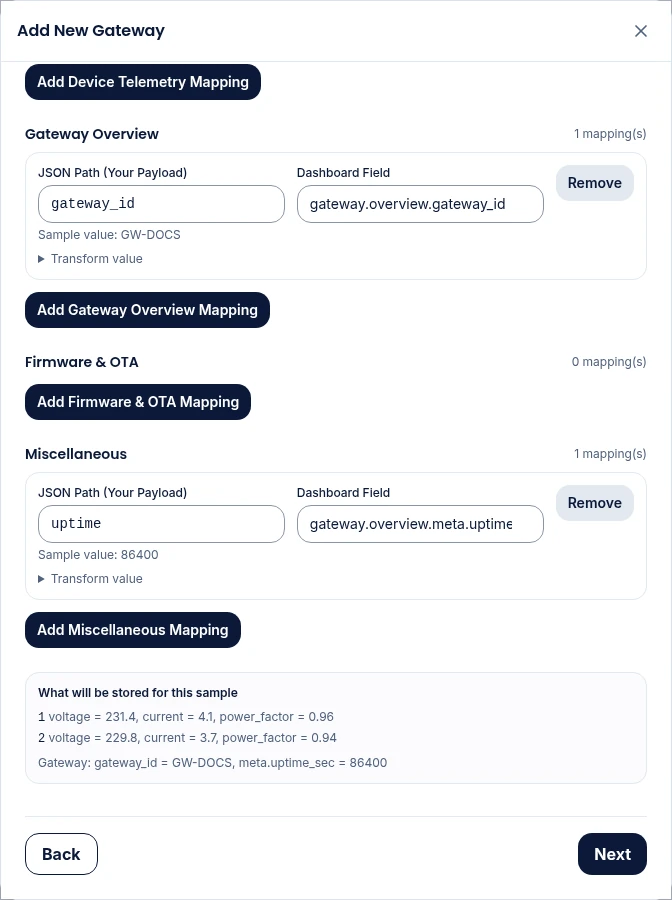
Reading the result
Each child device gets one line:
| You see | Meaning |
|---|---|
M1 voltage = 231.4, current = 4.1 | These values would be stored for M1. |
M1 3 readings, latest: voltage = 231.4 | The sample holds several readings for M1; all are stored, and the latest is shown. |
… · no value for power_factor | That metric is mapped, but the sample has no value for it. Check its JSON Path, or its transform. |
M3 is not in this sample, so nothing would be stored for it | The sample doesn't include this child. Fine if it wasn't sending when you copied the sample; otherwise check its Device ID and Identifier Field. |
No child devices yet | Add child devices in step 5. Device readings are only stored for configured children. |
Gateway: uptime = 3600, ip = 10.0.0.5 | Values that would be stored on the gateway itself. |
Why it matters
Test Mapping runs the same code the IoT Dashboard uses when real messages arrive. If the test shows the right values, real messages will be stored the same way.
Common problems
"Paste a sample gateway payload first." The sample box is empty.
"Add at least one mapping before testing." Click Detect Structure & Auto-Map, or add a mapping row.
"Invalid JSON. Please check the format." The sample isn't valid JSON. Copy it again from the source; a missing bracket or a trailing comma is the usual cause. For Sparkplug B you can also paste the message as base64 or hex.