Appearance
Payload mapping
Payload mapping tells the Firmcraft IoT Dashboard where each reading sits in your gateway's message. You do it once, in step 4 of the Add Gateway wizard, and it applies to every child device.
For a device that connects on its own, see Payload mapping for devices.
Who can do this: Admin User
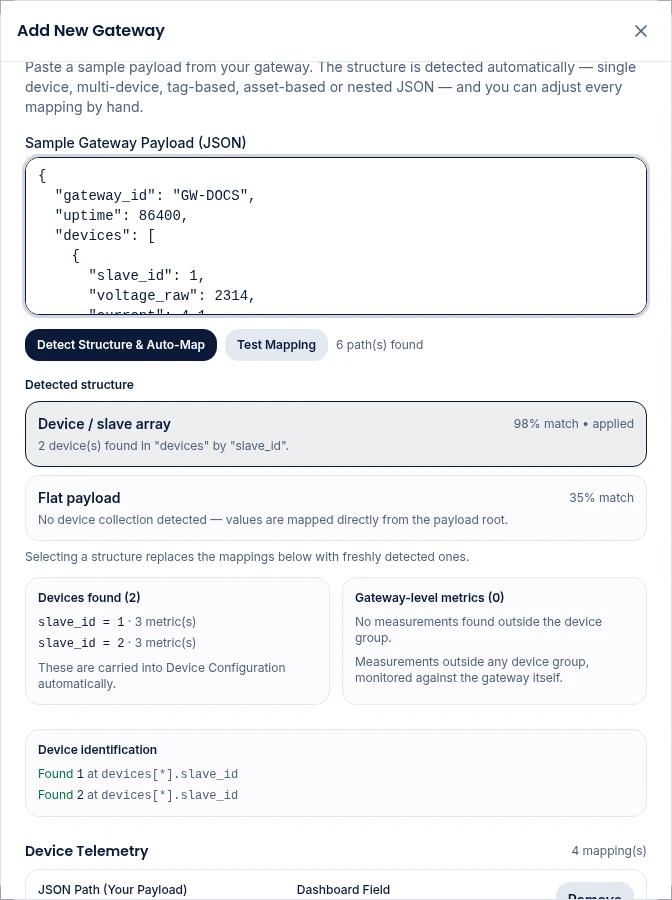
Let the IoT Dashboard do it: Detect Structure & Auto-Map
- Paste one real message from your gateway into the sample box.
- Click Detect Structure & Auto-Map.
- The IoT Dashboard lists the shapes it recognised under Detected structure, each with a match percentage. The best one is applied. Click another to use it instead; this replaces the mappings below.
- Check Devices found: each child device it found and how many metrics each has. These are carried into step 5.
- Check Gateway-level metrics: values outside any device, which are stored against the gateway itself.
The IoT Dashboard recognises these shapes:
| Shape | Looks like |
|---|---|
| Device / slave array | A list of devices, each with its ID and readings: "devices": [{ "slave_id": 1, "voltage": 231 }, …] |
| Tag-based payload | A list of tags, each naming a device, a metric and a value: [{ "tag": "M1.voltage", "value": 231 }, …] |
| Asset-keyed object | An object whose keys are device IDs: "assets": { "M1": { "voltage": 231 }, "M2": { … } } |
| Columnar arrays | One list of IDs and one list per reading, matched by position: "ids": ["M1","M2"], "voltage": [231, 229] |
| Single device (nested) | One device's readings inside an object: "data": { "voltage": 231 } |
| Flat payload | One device's readings at the top level: { "voltage": 231, "current": 4.1 } |
| One topic per device | The gateway puts each child's ID in the topic it publishes on, and the gateway's Topic Path has {device} where the ID sits. |
Device identification
Under the sample, Device identification checks each child device from step 5 against your sample:
- Found
M1atdevices[0].slave_id: all good. M1is not under "…" in the sample; it is at …: click Use "…" to fix the Identifier Field.M1does not appear in this sample.: its readings are stored once a message carries its ID. Fine if it simply wasn't in this sample.
The mappings
Mappings are grouped into four sections:
| Section | For |
|---|---|
| Device Telemetry | Readings for the child devices, such as voltage or temperature |
| Gateway Overview | The gateway's own values, such as uptime, IP address or signal |
| Firmware & OTA | Firmware version and update status |
| Miscellaneous | Anything else you want to keep |
Each mapping row has:
| Field | What it's for |
|---|---|
| JSON Path (Your Payload) | Where the value is in your message, such as devices[*].voltage. [*] means "every item in the list". Start typing to get suggestions from your sample. |
| Transform value | Optional. Scale, convert or relabel the value. See Value transforms. |
| Dashboard Field | What the value is called in the IoT Dashboard, such as gateway.devices[*].telemetry.voltage. Pick from the list or type your own metric name. |
| Device | Device Telemetry only. All devices applies the row to every child; pick one child to map a value only for it. |
Use Add Device Telemetry Mapping (and the matching buttons in the other sections) to add a row, and Remove to delete one.
Writing a JSON Path
| Your message | JSON Path |
|---|---|
{ "temp": 22.4 } | temp |
{ "data": { "temp": 22.4 } } | data.temp |
{ "devices": [ { "temp": 22.4 }, … ] } | devices[*].temp |
{ "devices": [ { "temp": 22.4 }, … ] }, first device only | devices[0].temp |
{ "tags": [ { "name": "temp", "value": 22.4 }, … ] } | tags[name=temp].value |
[name=temp] picks the first item in the list whose name is temp. It's how tag-based messages are mapped.
No mappings?
Mapping is optional. With no mappings, the gateway is created with default processing, which reads simple messages that follow the IoT Dashboard's standard layout. Most real gateways need a mapping.
Next steps
- Value transforms: scale and convert values
- Test Mapping: check the result before saving