Appearance
Secure connection (TLS)
The Firmcraft IoT Dashboard's MQTT broker, mqtt.firmcraft.in, only accepts encrypted connections on port 8883, and each device or gateway proves who it is with its own certificate. The IoT Dashboard issues that certificate for you.
This page also covers connecting the IoT Dashboard to your own broker over TLS.
Plain or secure?
| Plain MQTT | Secure MQTT (TLS) | |
|---|---|---|
| Port | 1883 | 8883 |
| Authentication Method | None (anonymous) or Username & Password | Self-Signed Certificate |
| Encrypted | No | Yes |
| Works with the IoT Dashboard's broker | No | Yes |
| Use it for | Your own broker on a private network | Everything on mqtt.firmcraft.in |
The port and the Authentication Method must agree. The wizard sets the port for you when you pick a method, and refuses TLS on port 1883.
Get a certificate for your device or gateway
Who can do this: Admin User
- In step 2 of the Add Device or Add Gateway wizard, set Authentication Method to Self-Signed Certificate. TLS and client certificates (mTLS) are switched on for you, and the Port becomes
8883. - Make sure the Gateway ID or Device ID from step 1 is final. The certificate is tied to it.
- Choose a Key Profile:
- Compatible: widest hardware support, including older mbedTLS builds.
- Efficient (the default): smallest and fastest; hardware-accelerated on ESP32-C3.
- High: for Linux or x86 gateways with no resource pressure.
- Click Download Certificate. A ZIP file downloads straight away.
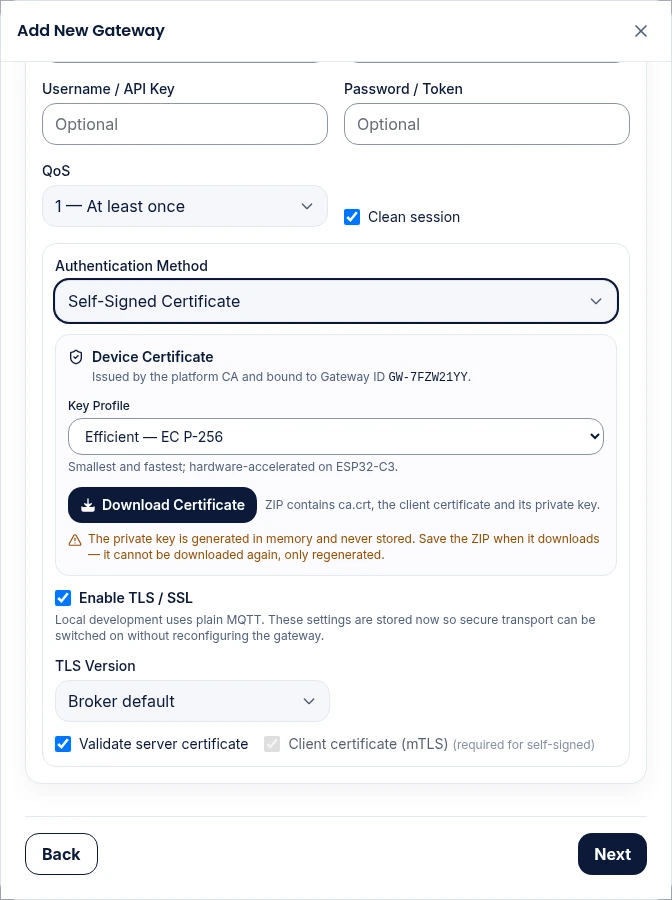
The ZIP file holds three files:
| File | What it is | Install it as |
|---|---|---|
ca.crt | The IoT Dashboard's certificate authority | The CA / root certificate |
<ID>.crt | Your device's certificate | The client certificate |
<ID>.key | Your device's private key | The client key |
Load all three onto your device or gateway, and point it at mqtt.firmcraft.in, port 8883.
Save the ZIP straight away
The private key is created once and never stored by the IoT Dashboard. The ZIP can't be downloaded again. If you lose it, you have to regenerate the certificate.
Regenerate a certificate
Do this if the ZIP is lost, or if a device may have been compromised.
- Open the device or gateway's Edit form.
- In the certificate panel, click Regenerate Certificate, then Yes, regenerate.
- Download the new ZIP and load it onto the device.
The old certificate is revoked at once, so anything still using it stops connecting.
Your own broker over TLS
If your gateway publishes to your own broker, or to a network server such as The Things Stack, the IoT Dashboard connects to that broker to collect the messages. To use TLS:
- Set Authentication Method to what your broker needs, usually Username & Password.
- Tick Enable TLS / SSL. The port becomes
8883. - Paste your broker's root CA certificate, in PEM format, into CA Certificate (PEM). It starts with
-----BEGIN CERTIFICATE-----. - Leave Validate server certificate ticked.
Always paste the CA certificate
Without it, the IoT Dashboard only trusts its own certificate authority, and the connection to your broker fails, even if your broker uses a well-known public certificate.
Client certificate (mTLS) is only needed if your broker asks the IoT Dashboard for a client certificate. Ask Firmcraft support to set this up.
Common problems
"TLS is on, but port 1883 is MQTT's plain port and cannot carry TLS." Clear the Port field to use 8883, or set Authentication Method to None (anonymous).
"Enter a Gateway ID first — the certificate is bound to it." Fill in step 1 before generating the certificate.
More connection errors are listed in Certificate errors.