Appearance
Add a device
Add a device when one piece of equipment connects to the Firmcraft IoT Dashboard on its own. If one box reports for several pieces of equipment, add a gateway instead.
Who can do this: Admin User
Open the wizard
- Open Devices in the sidebar.
- Click Add Device, then choose Add Device.
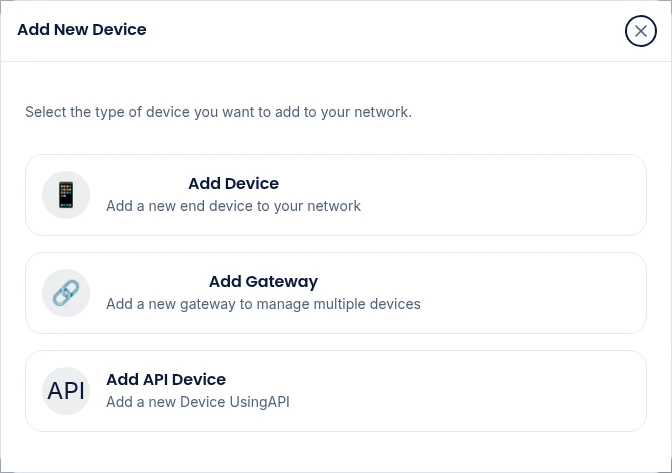
The wizard has five steps. Required fields are marked with a red *.
Step 1: Basic Device Information
| Field | What to enter |
|---|---|
Device Name * | A name people will recognise, such as Boiler Room Meter. |
| Device ID / Serial Number | Leave the generated ID, or enter the device's own serial number. |
| Manufacturer, Model, Firmware/Software Version | Optional, for your records. |
Step 2: Connection Configuration
This tells the IoT Dashboard where your device publishes its readings.
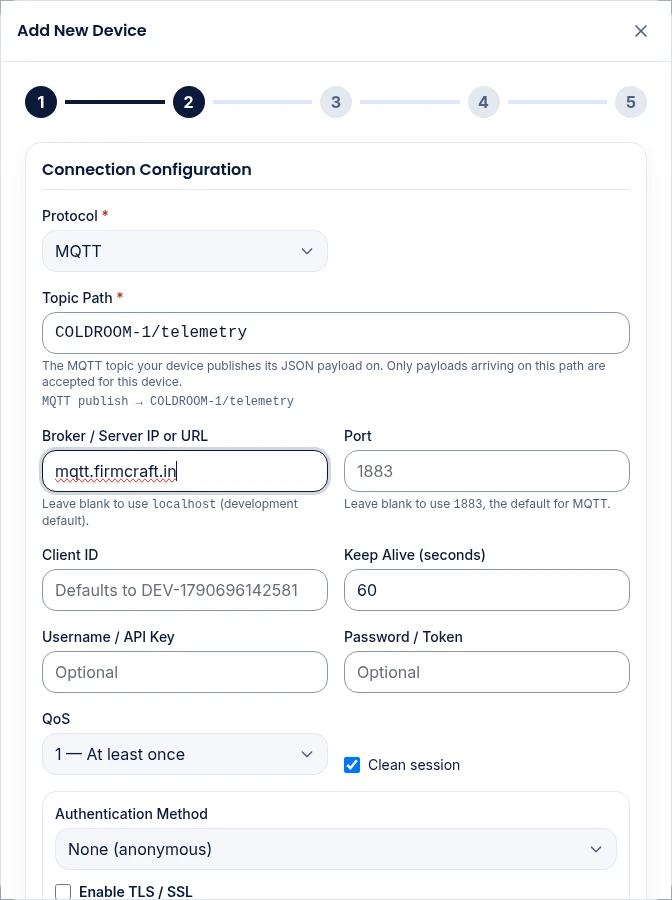
| Field | What to enter |
|---|---|
Protocol * | MQTT for most devices. MQTT over TLS (MQTTS) if your device only speaks TLS. HTTPS if it posts readings over the web instead. |
Topic Path * | Filled in as device/<Device ID>/telemetry. Change it to the MQTT topic your device really publishes on. Only messages on this topic are accepted for this device. For HTTPS this field is called Endpoint Path. |
| Broker / Server IP or URL | mqtt.firmcraft.in to use the IoT Dashboard's broker, or the address of your own broker. |
| Port | Leave blank to use the default for the protocol. |
| Authentication Method | Self-Signed Certificate for the IoT Dashboard's broker. See Secure connection. |
| Client ID, Keep Alive, Username / API Key, Password / Token, QoS, Clean session | Only if your broker needs them. The defaults suit most devices. |
The IoT Dashboard connects to the broker you name
The IoT Dashboard subscribes to your Topic Path on the broker in Broker / Server IP or URL. If that's your own broker, it must be reachable from the internet, and any username and password you enter must let the IoT Dashboard subscribe.
Step 3: Location Details and Data & Metrics
- Site / Plant / Facility
*: pick an existing site or type a new one. Sites group devices on the dashboard and in analytics. - Zone / Floor / Section, Place, Latitude, Longitude: optional. Latitude and longitude place the device on the Map view.
- Metrics: add one row per reading the device sends. Type the metric name, for example
temperature, and pick a unit. Click Add Metric for more rows. - Data Reporting Interval: how often the device sends. Optional. The IoT Dashboard learns the real interval from the readings it receives.
Step 4: Alerts & Thresholds
Optional. For any metric, set a Min Threshold and/or Max Threshold. An alert is raised when a reading goes outside that range. Click Add alert level to add up to three stricter levels, such as a Critical level above the maximum, for up to 5 thresholds per metric. See Extra alert levels. Choose how you want to be told: Email, SMS or Dashboard.
This step also holds Advanced Settings and Firmware Update paths, which you only need for over-the-air firmware updates.
Step 5: Payload Mapping
Optional. Skip it if your device sends flat JSON, with each metric at the top level:
json
{ "temperature": 22.4, "humidity": 55, "battery": 3.61 }If your device nests its readings or uses different names, paste a sample message here and map each field to a metric. See Payload mapping for devices.
Click Submit Device.
What happens next
The device appears on the Devices page as Offline until its first message arrives. After that it shows Online, and its readings appear on its page.
Common problems
"Your subscription limit was reached." Your plan's device or metric limit is full. Remove unused devices or upgrade your plan.
A directly connected or API device uses one of your plan's Monitored Units for each metric it reports. A gateway uses one unit per child device, however many metrics each child reports, and at least one unit even with no children.
"TLS is on, but port 1883 is MQTT's plain port and cannot carry TLS." Clear the Port field so it uses 8883, or set Authentication Method to None.
The device stays Offline. See Common problems.