Appearance
Connect a Sparkplug B edge node
Sparkplug B is the MQTT format many industrial gateways, PLCs and SCADA systems use. In the Firmcraft IoT Dashboard, a Sparkplug edge node becomes a gateway, and each Sparkplug device under it becomes a child device.
Who can do this: Admin User
How it works
Every Sparkplug message is published on a topic like this:
spBv1.0 / Plant1 / DDATA / Line3 / Meter7
          ───┬──   ──┬──   ──┬──   ──┬───
          Group ID   │   Edge Node ID  Device ID
                 Message type
You give the IoT Dashboard the Group ID and Edge Node ID. It then listens to everything that edge node publishes:
spBv1.0/Plant1/+/Line3/#+means every message type: BIRTH, DATA and DEATH. You don't pick one.#means every device under the node.
The IoT Dashboard decodes the binary Sparkplug messages for you, including:
- Aliases. Many edge nodes send numbers instead of metric names after the first BIRTH message. The IoT Dashboard remembers the names from BIRTH, even across restarts.
- Report by exception. Edge nodes only send values that changed. A metric missing from a message keeps its last value.
- Node metrics. Values the edge node reports about itself (NBIRTH, NDATA) go to the gateway; device values (DBIRTH, DDATA) go to the child named in the topic.
What you need
- The edge node's Group ID and Edge Node ID, exactly as configured on the node.
- The Sparkplug device IDs of the devices under it, such as
Meter7,Meter8. - The broker the edge node publishes to. Point the edge node at
mqtt.firmcraft.in, port8883, or use your own broker. - One sample message (optional, but recommended).
Steps
1. Get a sample message
Subscribe to spBv1.0/# on your broker with an MQTT tool and copy one device's DDATA or DBIRTH message. Either form works:
- The JSON your tool shows when it decodes Sparkplug, with a
"metrics"list. - The raw message as base64 or hex.
2. Add the gateway
Open Devices → Add Device → Add Gateway, and follow Add a gateway with these values:
Step 2 — Connection Configuration
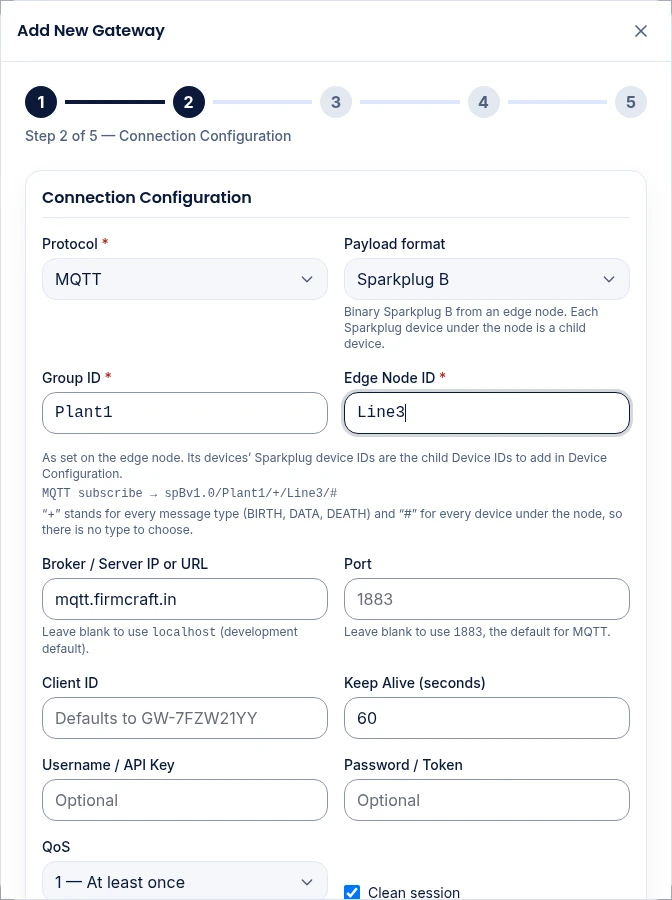
| Field | Value |
|---|---|
| Protocol | MQTT or MQTT over TLS (MQTTS). Sparkplug B is MQTT only. |
| Payload format | Sparkplug B |
| Group ID | As set on the edge node, such as Plant1 |
| Edge Node ID | As set on the edge node, such as Line3 |
| Broker / Server IP or URL | mqtt.firmcraft.in, or your own broker |
| Authentication Method | Self-Signed Certificate for the IoT Dashboard's broker |
The wizard shows the topic it will subscribe to under the fields.
Step 4 — Payload Mapping & Device Discovery
- Paste your sample into Sample Sparkplug B message.
- Click Detect Structure & Auto-Map. The IoT Dashboard decodes the message and maps each metric. Click Show the decoded message to see what it read.
- Click Test Mapping to check the values.
Paste only one device's message. One mapping serves every device under the node, as each device is identified by the device ID in its topic.
Step 5 — Device Configuration & Alerts
Add each Sparkplug device as a child, using its Sparkplug device ID as the Device ID, such as Meter7. Give it an Alias if you like.
Click Submit Gateway.
3. Check the data
The gateway turns Online when the edge node next publishes. If your edge node only sends BIRTH messages when it connects, restart it or trigger a rebirth so the IoT Dashboard learns the metric names straight away. Open the gateway, then a child device, to see its readings update live.
Metric names
Sparkplug metric names often contain folders, such as Inputs/Current. The IoT Dashboard keeps the full name. In the mapping, set the Dashboard Field to a clear metric name, such as current.
Common problems
"Group ID and Edge Node ID are required for Sparkplug B." Enter both in step 2.
"Group ID and Edge Node ID cannot contain /, +, # or spaces." Use the IDs exactly as the edge node sends them in its topic.
"Sparkplug B is MQTT only." Change Protocol to an MQTT option.
The gateway is Online but a device shows nothing. The device ID in step 5 doesn't match the last part of the device's topic. See Gateway data not arriving.
Some metrics never appear. The edge node sends them by alias only, and the IoT Dashboard hasn't yet seen the BIRTH message that names them. Trigger a rebirth on the edge node, or restart it.
Past (store-and-forward) values are missing. The IoT Dashboard stores each metric's current value. Historical metrics that an edge node replays after a disconnect are skipped.