Appearance
Quick start: connect your first device
This guide connects one device to the Firmcraft IoT Dashboard over MQTT and gets its first reading onto the dashboard. It takes about 10 minutes.
Who can do this: Admin User
What you need
- A Firmcraft IoT Dashboard account. See Create your account.
- A device that can publish JSON over MQTT with TLS, or a computer with
mosquitto_pubto act as the device while you test.
1. Add the device
Open Devices in the sidebar and click Add Device.
Choose Add Device.
Basic Device Information: enter a Device Name, such as
Cold Room 1. Click Next.Connection Configuration:
- Protocol:
MQTT - Topic Path: the topic your device will publish on, such as
COLDROOM-1/telemetry - Broker / Server IP or URL:
mqtt.firmcraft.in - Authentication Method:
Self-Signed Certificate. The Port changes to8883. - Click Download Certificate and keep the ZIP file safe. If you lose it, open the device's Edit form and click Regenerate Certificate to download a new one. The old certificate then stops working. See Secure connection.
Click Next.
- Protocol:
Location Details & Data & Metrics:
- Site / Plant / Facility: type a name, such as
Salem Plant - Add one row per metric your device sends, for example
temperatureinCandhumidityin%RH.
Click Next.
- Site / Plant / Facility: type a name, such as
Alerts & Thresholds: optional. You can set a minimum and maximum for any metric now, or later. Click Next.
Payload Mapping: skip this step if your device sends flat JSON like the example below. If your JSON is nested or shaped differently, see Payload mapping for devices. Click Submit Device.
2. Send a reading
Unzip the certificate. The folder holds ca.crt, <DEVICE-ID>.crt and <DEVICE-ID>.key.
Publish one reading on the topic you entered:
bash
mosquitto_pub -h mqtt.firmcraft.in -p 8883 \
  --cafile ca.crt --cert DEVICE-ID.crt --key DEVICE-ID.key \
  -t 'COLDROOM-1/telemetry' \
  -m '{"temperature": 4.2, "humidity": 71}'
Replace DEVICE-ID with the file names from your ZIP.
3. See it on the dashboard
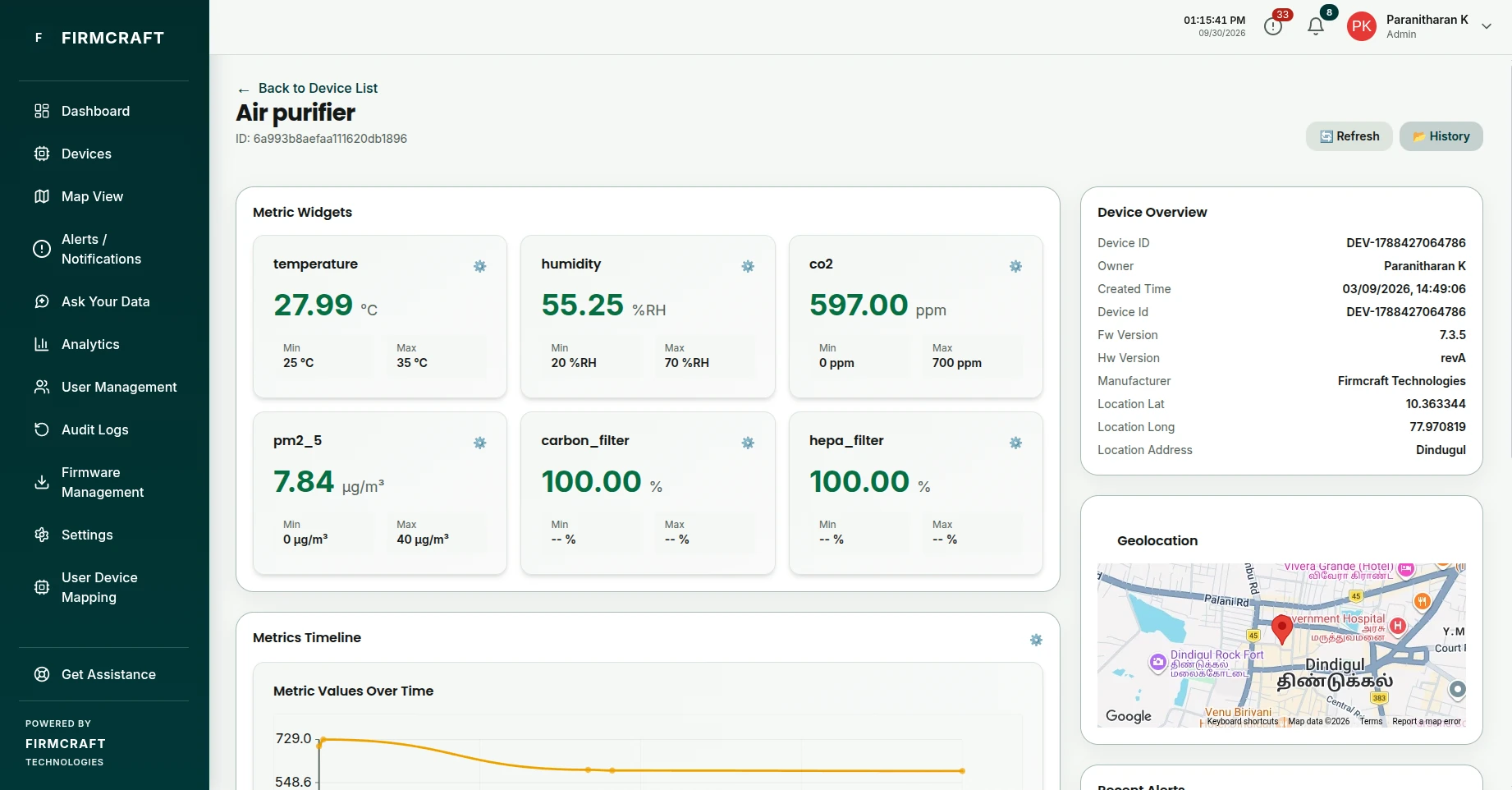
Open Devices and click your device. The status turns Online and the reading appears under Metric Widgets. Send a few more readings to see the charts fill in.
It can take up to 30 seconds
The IoT Dashboard checks for new and changed devices every 30 seconds. If your first message was sent immediately after you clicked Submit Device, send it again.
Didn't work?
- The device stays Offline. Check that the topic you publish on is exactly the Topic Path you entered. See Common problems.
mosquitto_pubreports a TLS or certificate error. See Certificate errors.
Next steps
- Add a gateway if one box reports for several pieces of equipment.
- Invite your team.