Appearance
Notifications
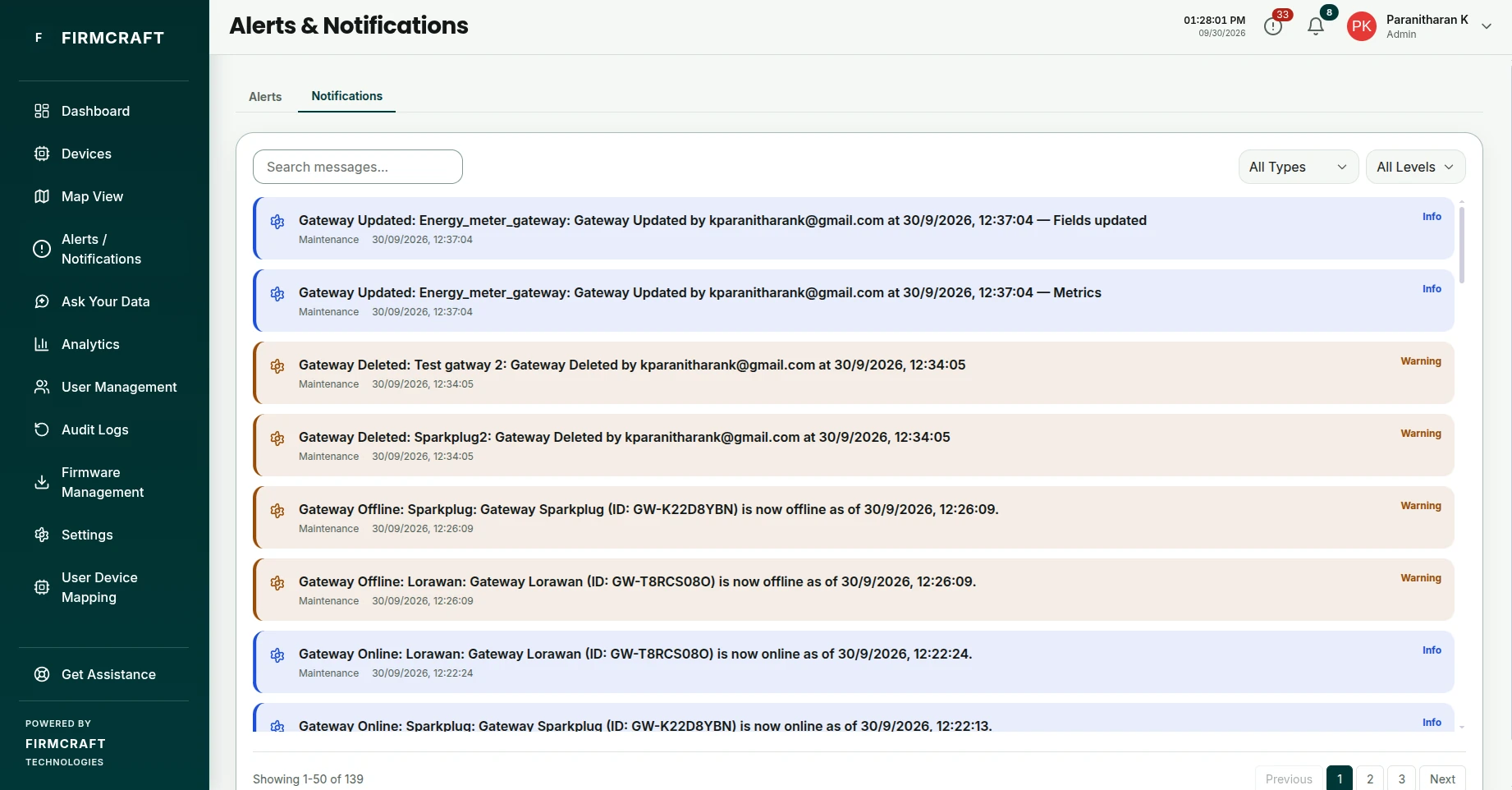
Notifications are messages about your account and your devices that aren't threshold alerts: a device going online or offline, a device assigned to you, your plan nearing its limit or its end date.
The Notifications tab
Open Alerts / Notifications in the sidebar and click the Notifications tab. The bell icon at the top of every page shows how many are unread; click it for the latest ones.
- Search messages to find one by its text.
- Filter by type or level.
Where alerts and notifications reach you
| Channel | What arrives | How to turn it on or off |
|---|---|---|
| Dashboard | Everything, on the Alerts / Notifications page and under the bell icon | Always on |
| Every alert for your devices | Email Alerts in Settings | |
| Extra email address | A copy of every alert email, for example to a team inbox | Additional Alert Email in Settings |
| Mobile push | Device alerts, and devices going offline or online, on your phone, even when the app is closed | Push Notifications in Settings, and in the mobile app |
| Weekly report | A fleet summary every Monday | Weekly Report in Settings |
To get only critical alerts by email and push, turn on Critical Alerts Only in Settings.
The weekly report
Every Monday at 08:00 in your time zone, the Firmcraft IoT Dashboard emails a short fleet summary. The full Fleet Analytics report and your saved Analytics favorites are attached as a PDF. Turn it on with Weekly Report in Settings.
Devices going offline or online
When a device or gateway stops reporting, or starts again, you get a notification: under the bell icon, by email, and as a push on your phone. These are notifications only. They don't appear in the alerts list and don't need resolving.
Plan usage and expiry
Admins are notified when the company's usage reaches 70%, 85% and 100% of the plan's limits, and as the plan's end date approaches: 30 days, 14 days and 7 days before it ends.
Warnings about device and data limits are also emailed. Warnings about the number of users and viewers appear only in the dashboard.
Each month's data points have their own warnings, at 80% and 100%. A banner at the top of the dashboard shows the same, with an Add data button. When the month's data points are used up, live data and alerts carry on, and history is kept at one reading per device every 5 minutes until the month resets.